
New Hire Onboarding Tracker
New hire onboarding tracker in Excel for service companies that hire field techs.
Every new hire gets a row and every onboarding task a column. Each task's due date is worked out from the hire's start date.
$12.00
Buy nowPay once. No subscription.
If a file won't open, won't work on your computer or Microsoft plan, or isn't what the page described, we fix it or refund you, your choice. Tell us within 14 days of your purchase.
Questions? Email support@tightshiphq.com
- Made for Excel, not Google Sheets.
- No reminders: nothing is emailed or texted.
How you use it
Settings
Sample data
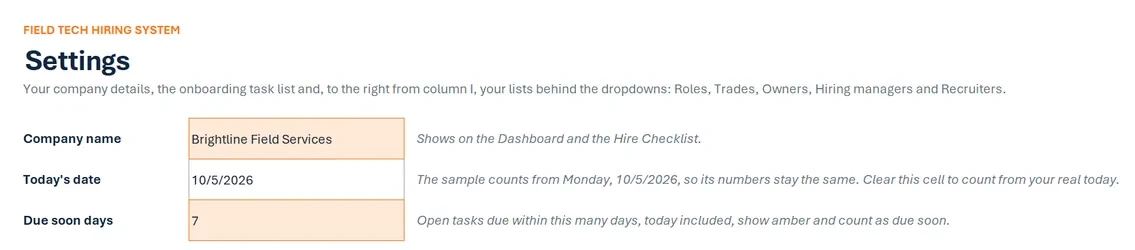
- Company name
- Brightline Field Services
- Today's date
- 10/5/2026
- Due soon days
- 7
RolesHVAC Service TechnicianHVAC Install TechnicianJourneyman ElectricianApprentice Electrician
Hiring managersRick SalazarJanelle OrtizTom Becker
RecruitersDana WhitfieldLuis Moreno
Step 1. In the blank tracker, type your company name on Settings.
Then add your roles, hiring managers, and recruiters.
The top of the Settings tab in the sample copy: the company name, today's date and the due soon days. The sample company and its 16 hires are made up.
ONBOARDING TASKS
Sample data
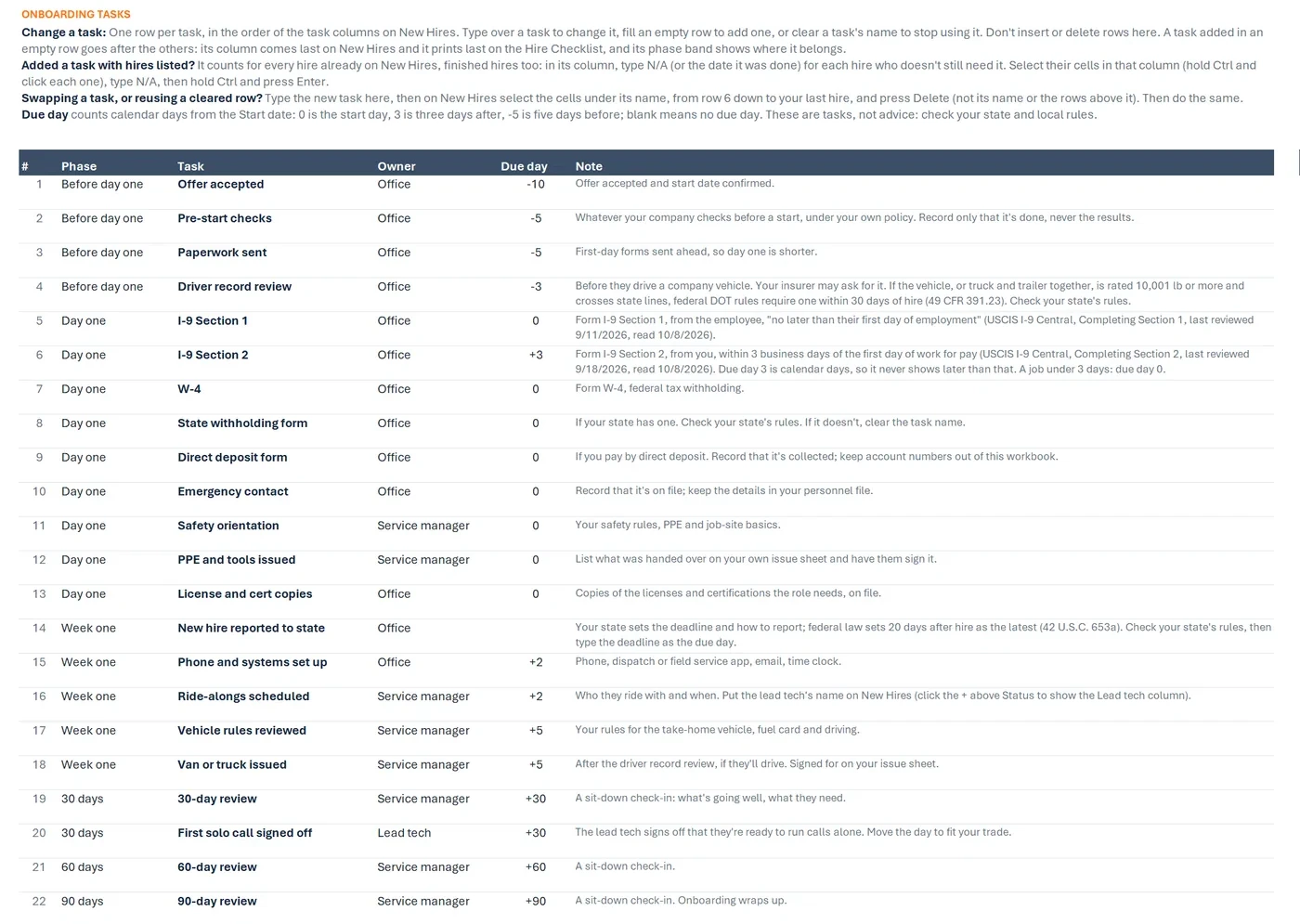
# Phase Task Owner Due day 1 Before day one Offer accepted Office -10 2 Before day one Pre-start checks Office -5 3 Before day one Paperwork sent Office -5 4 Before day one Driver record review Office -3 5 Day one I-9 Section 1 Office 0 6 Day one I-9 Section 2 Office +3 7 Day one W-4 Office 0 Step 2. Read the 22 tasks on Settings.
Change them to fit how you onboard.
The Settings tab's task list: 22 default onboarding tasks in six phases, from before day one to 90 days, each with an owner, and most with a due day counted from the start date. Not legal advice.
New Hires
Sample data
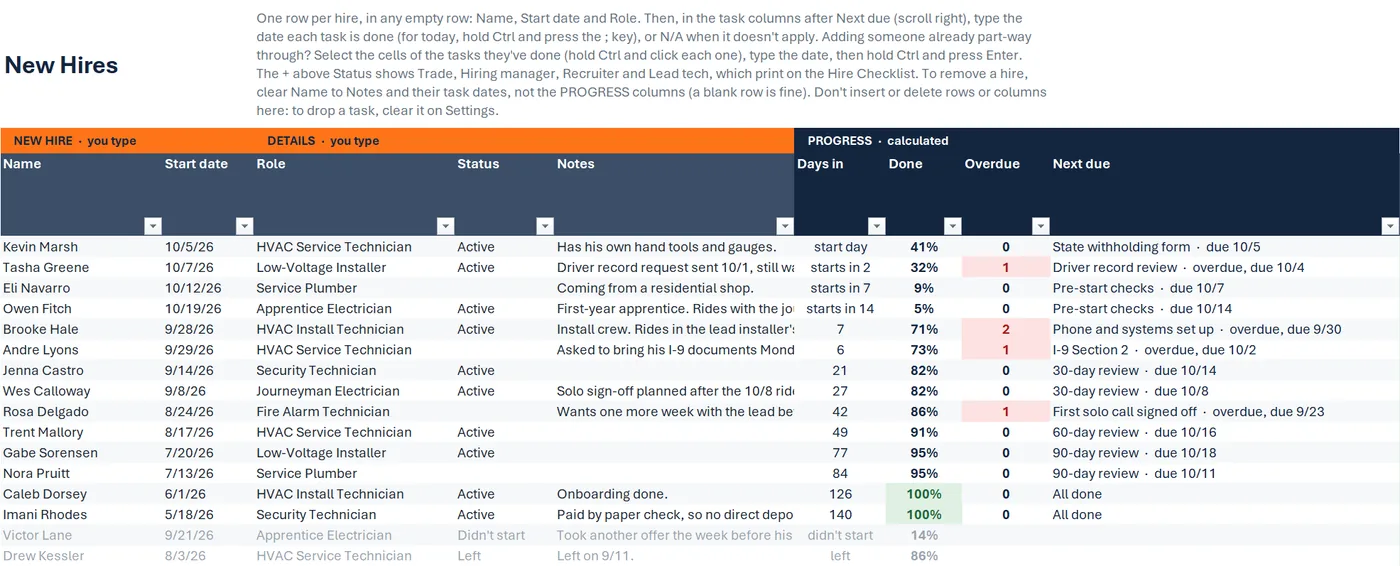
Name Start date Role Status Kevin Marsh 10/5/26 HVAC Service Technician Active Tasha Greene 10/7/26 Low-Voltage Installer Active Eli Navarro 10/12/26 Service Plumber Owen Fitch 10/19/26 Apprentice Electrician Active Brooke Hale 9/28/26 HVAC Install Technician Active Andre Lyons 9/29/26 HVAC Service Technician Step 3. Add each new hire on New Hires: name, start date, and role.
The New Hires tab's calculated columns: days in, share of tasks done, overdue count and the next task due for each active sample hire, beside the names and start dates of all 16 made-up hires.
Before day one
New Hires
Sample data
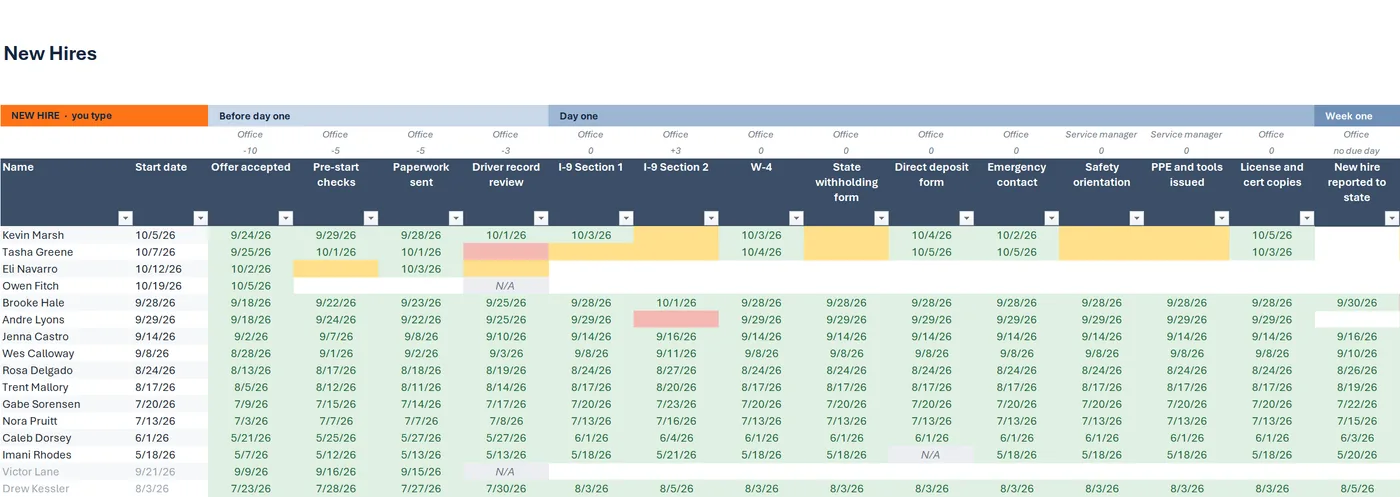
Name Offer accepted Pre-start checks Driver record review Kevin Marsh 9/24/26 9/29/26 10/1/26 Tasha Greene 9/25/26 10/1/26 Eli Navarro 10/2/26 Owen Fitch 10/5/26 N/A Step 4. As each task gets done, type the date in its column, or N/A.
The New Hires tab: one row per new hire and one column per task. Done dates show green, overdue cells red and due-soon cells amber.
- 5OVERDUE TASKS
Sample data
Overdue tasks by owner
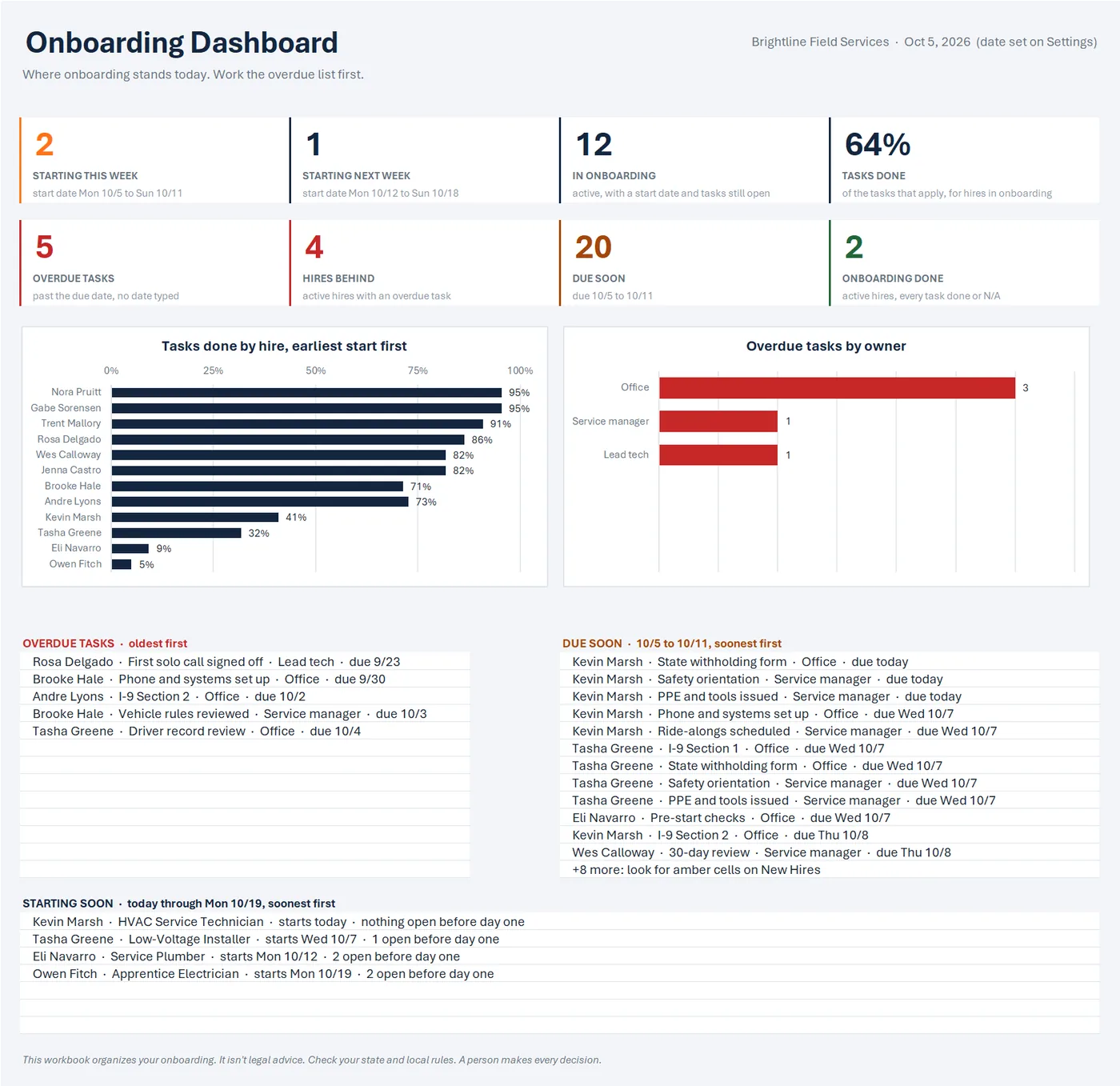
OVERDUE TASKS · oldest first
- Rosa Delgado · First solo call signed off · Lead tech · due 9/23
- Brooke Hale · Phone and systems set up · Office · due 9/30
- Andre Lyons · I-9 Section 2 · Office · due 10/2
Step 5. Each morning, open the Dashboard.
Overdue tasks come first, then what's due soon, then who's starting.
The Dashboard tab: eight numbers such as 2 starting this week and 5 overdue tasks, a tasks-done-by-hire chart, an overdue-by-owner chart, and the overdue and due-soon lists. All sample data is made up.
NEW HIRE CHECKLIST
Sample data
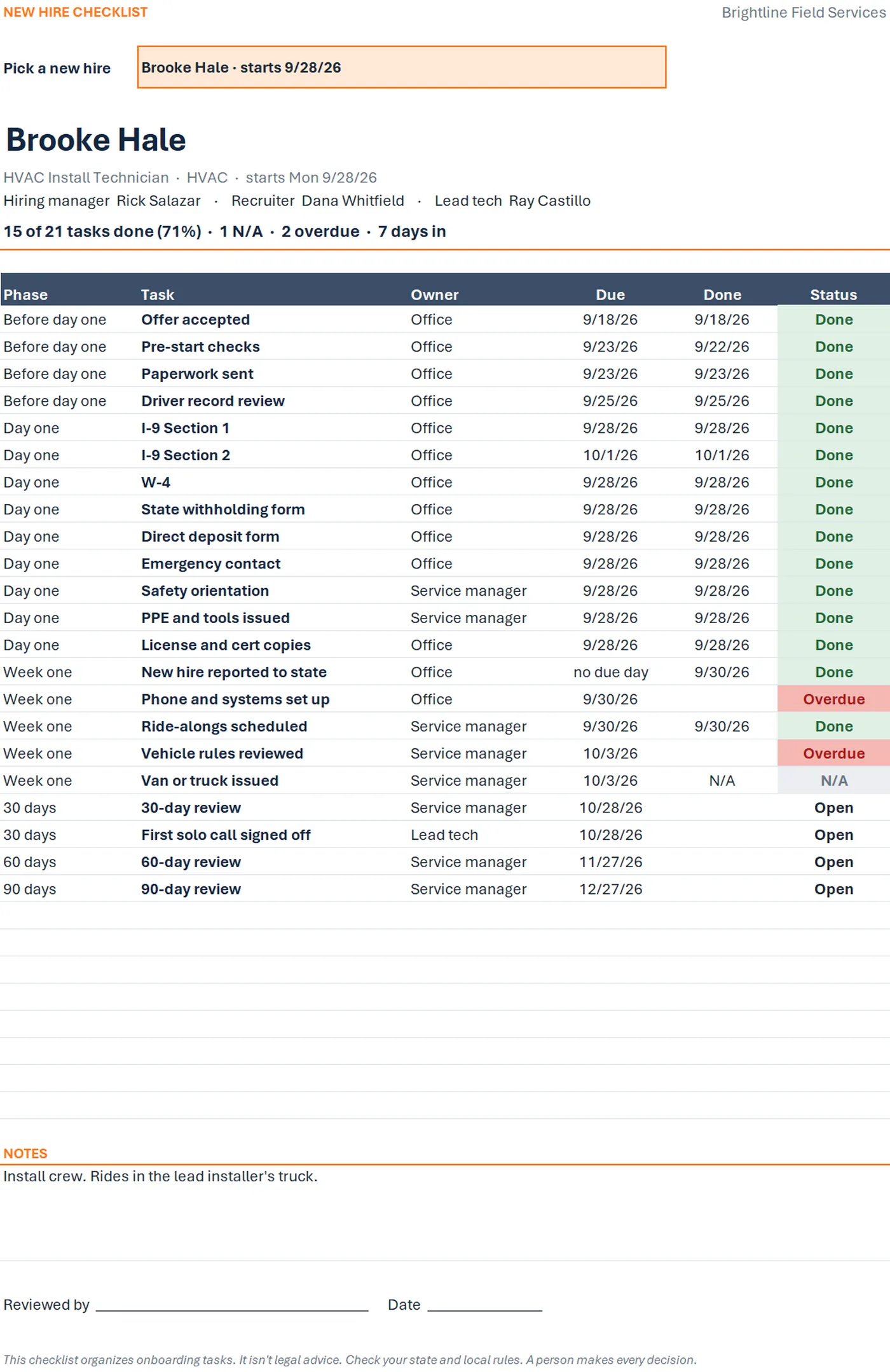
Brooke Hale
HVAC Install Technician · HVAC · starts Mon 9/28/26
15 of 21 tasks done (71%) · 1 N/A · 2 overdue · 7 days in
Task Owner Due Status New hire reported to state Office no due day Done Phone and systems set up Office 9/30/26 Overdue Ride-alongs scheduled Service manager 9/30/26 Done Vehicle rules reviewed Service manager 10/3/26 Overdue Van or truck issued Service manager 10/3/26 N/A 30-day review Service manager 10/28/26 Open Step 6. Pick a hire on the Hire Checklist.
Print their list or save it as a PDF.
The Hire Checklist tab for one sample hire: every onboarding task with its phase, owner, due date, done date and status, a progress line, notes and a reviewed-by line, to print or save as a PDF.
Drawn from the sample data in the file. Each step links to the real screen. Made-up data only, in every file and every image.
What's included
- Onboarding tracker workbook, blank and ready to use, with five tabs: Start Here, Dashboard, New Hires, Hire Checklist, and Settings
- 22 onboarding tasks already set up in it, from offer accepted to the 90-day review, all editable
- A sample-data copy filled with 16 made-up new hires at a made-up company, so you can click around before adding your own
- A one-page quick-start PDF
- A start-here text file
Before you buy
- Needs Excel for Microsoft 365 or Excel 2021 or newer. Checked in Excel for Microsoft 365 on Windows.
- Not tested yet in Excel for the web or Excel for Mac.
- Not for Google Sheets, Apple Numbers, or Excel 2019 and older.
- No reminders: nothing is emailed or texted. The workbook shows what's due when you open it.
- No forms inside. It records the date each form was collected, never what's on it, and it has no fields for Social Security numbers, bank details, or birth dates.
- No state rules or deadlines are built in. Tasks that depend on your state say to check your state's rules.
- Delivered as one .zip file. Unzip it first, then open the Quick Start PDF.
- Digital download. Nothing is shipped.
A person makes every decision
This is a workflow and organizing tool for onboarding tasks. It doesn't know your state's rules, and it doesn't include, fill in, or review any form: it records the date each task was done. The default tasks and due days are editable examples; you decide what applies to each hire. Not legal advice. Check your state and local rules.
Questions
Does it send reminders?
No. Nothing is emailed or texted. Open the Dashboard each morning: its lists show what's overdue, what's due soon, and who starts in the next 14 days.
Does it store Social Security numbers or bank details?
No. It records the date a form was collected, never what's on it, and it has no fields for Social Security numbers, bank details, or birth dates. Keep those in your own personnel files.
Can I change the tasks?
Yes. On Settings, type over a task to change it, fill an empty row to add one (up to 30), or clear a task's name to stop using it, and set each task's phase, owner and due day. The note above the task list walks you through changing tasks once hires are listed.
Is this part of the Tracker or the Full Kit?
No. It's a separate workbook that picks up where they stop, at Hired. Nothing moves between them on its own: you type each new hire in.
Does it work on a Mac or in Excel for the web?
Not tested yet. We've checked it in Excel for Microsoft 365 on Windows. It uses no macros and only functions Excel 2021 has, but we haven't opened it in Excel for Mac or Excel for the web.
Related tool
Field Tech Hiring System Tracker
The Field Tech Hiring System Tracker keeps every applicant, screening question, and next step in one place, from new applicant to hired.
See this tool$19.00