
PTO and Attendance Tracker
PTO and attendance tracker in Excel for service companies with a field crew.
Time off balances by the rules you type in, every request and decision, and who's out by trade each day.
$14.00
Buy nowPay once. No subscription.
If a file won't open, won't work on your computer or Microsoft plan, or isn't what the page described, we fix it or refund you, your choice. Tell us within 14 days of your purchase.
Questions? Email support@tightshiphq.com
- Needs Excel for Microsoft 365 or Excel 2021 or newer, on Windows.
- No leave policy is included and no leave law is built in.
How you use it
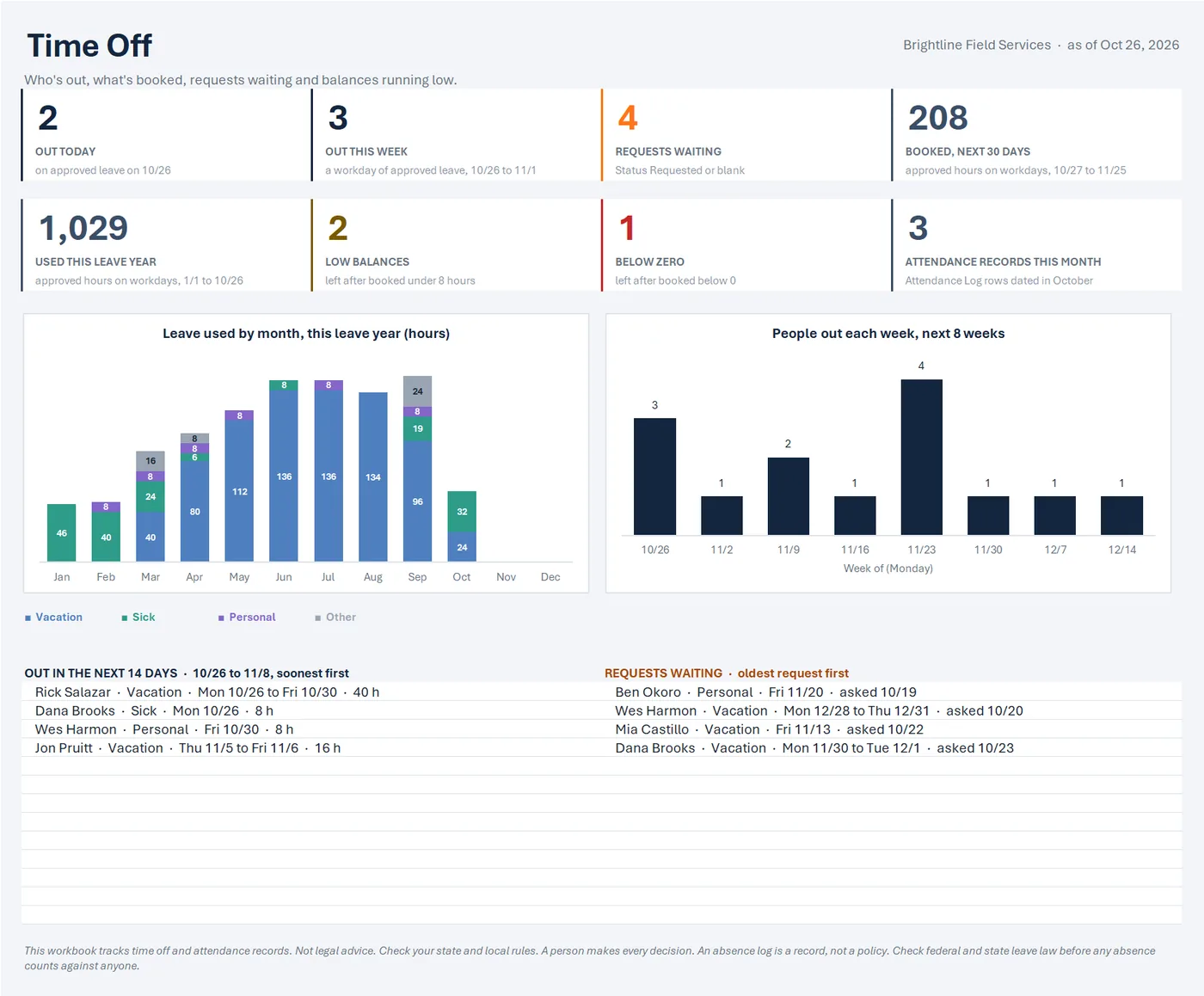
- 2OUT TODAY
Sample data
People out each week, next 8 weeks
Step 1. Open the sample-data copy first.
It shows how it all fits together.
A sample-data copy with a made-up crew and a made-up leave policy, counted as of Oct 26, 2026, so you can click around before adding your own.
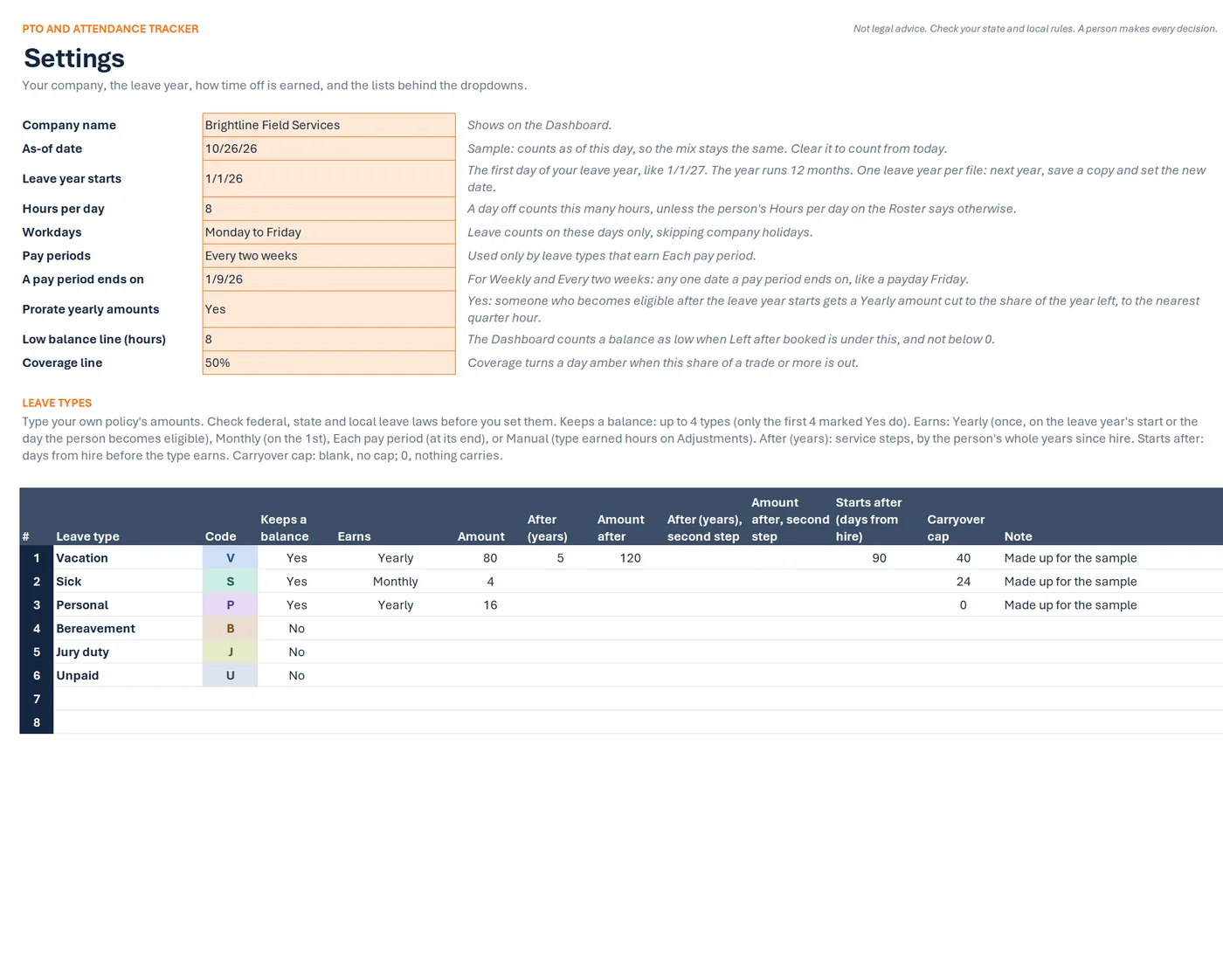
Settings
Sample data
- Company name
- Brightline Field Services
- Leave year starts
- 1/1/26
- Hours per day
- 8
- Workdays
- Monday to Friday
LEAVE TYPES
Leave type Keeps a balance Earns Amount Vacation Yes Yearly 80 Sick Yes Monthly 4 Personal Yes Yearly 16 Bereavement No Jury duty No Unpaid No Step 2. Save the blank workbook where you keep your work files.
On its Settings tab, type your company name, your leave year's start date, workdays, company holidays, and your leave types and how each is earned.
The Settings tab's leave types: each earns yearly, monthly, each pay period or by hand, with service steps, a start delay and a carryover cap. A blank file leaves every amount empty; the sample's amounts are made up.
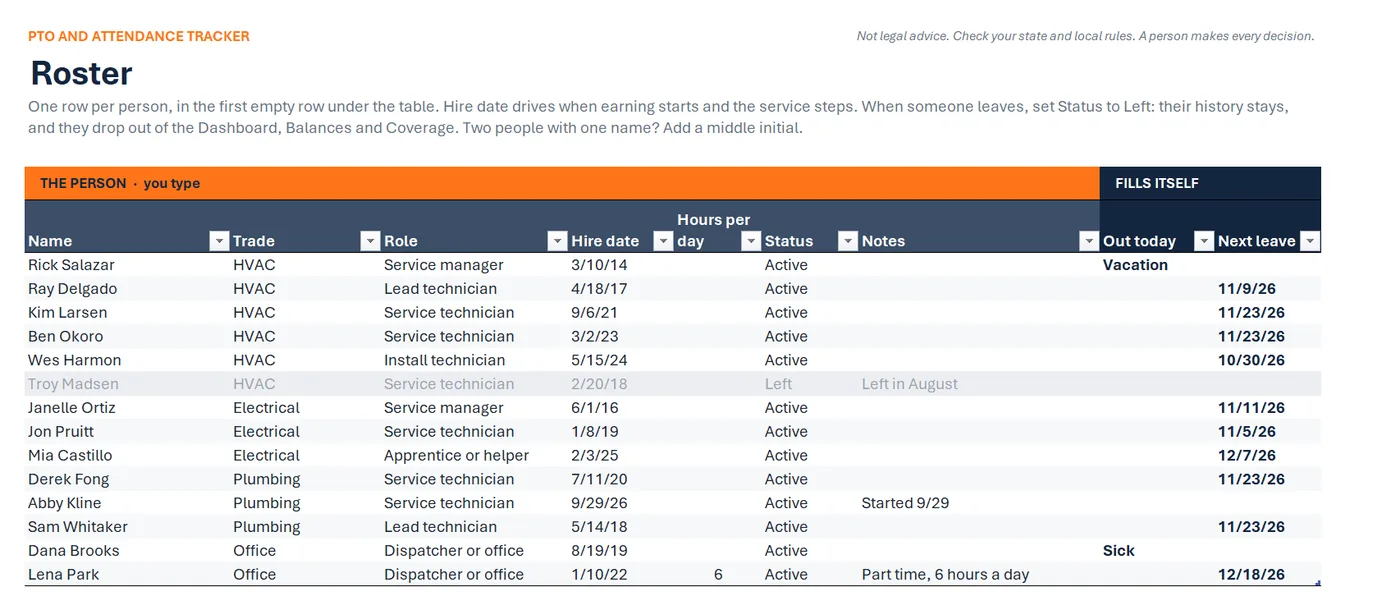
Roster
Sample data
Name Trade Role Hire date Rick Salazar HVAC Service manager 3/10/14 Ray Delgado HVAC Lead technician 4/18/17 Kim Larsen HVAC Service technician 9/6/21 Ben Okoro HVAC Service technician 3/2/23 Wes Harmon HVAC Install technician 5/15/24 Janelle Ortiz Electrical Service manager 6/1/16 Step 3. Add your crew on the Roster, with each hire date.
The Roster: each person's trade, role, hire date and status. Out today and next leave fill themselves.
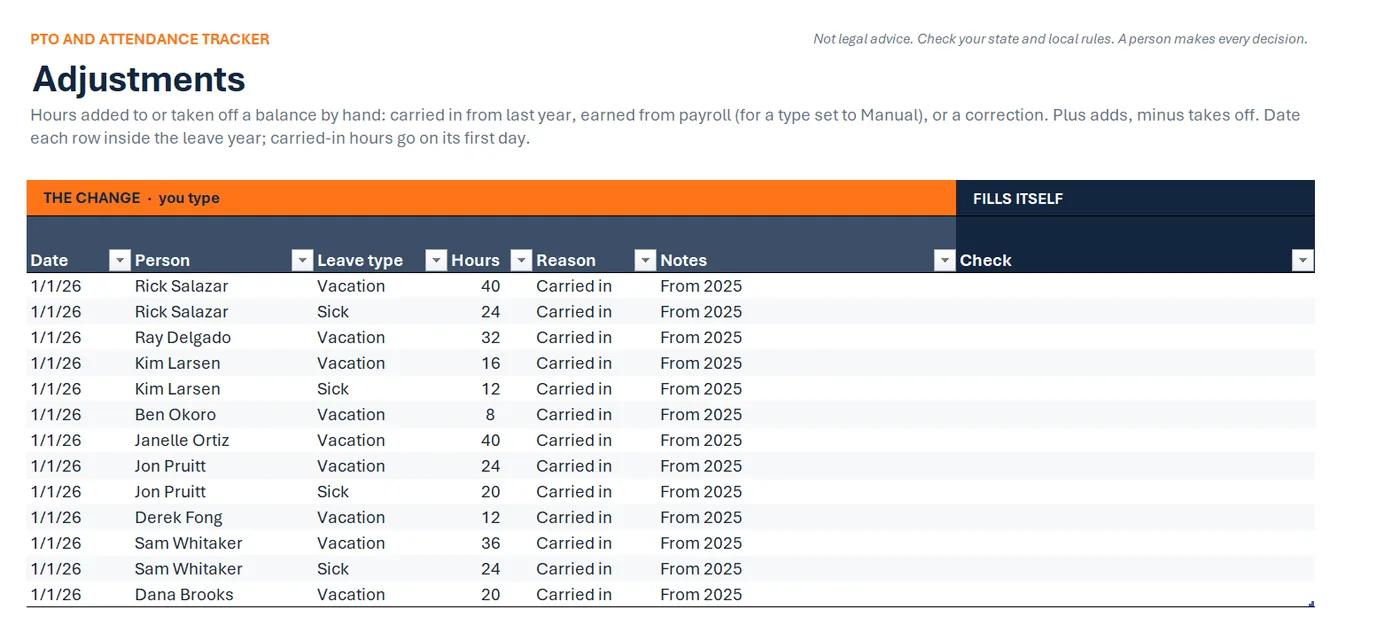
Adjustments
Sample data
Person Leave type Hours Reason Rick Salazar Vacation 40 Carried in Rick Salazar Sick 24 Carried in Ray Delgado Vacation 32 Carried in Kim Larsen Vacation 16 Carried in Kim Larsen Sick 12 Carried in Ben Okoro Vacation 8 Carried in Step 4. Type each person's carried-in hours on Adjustments.
Adjustments: one row per change, with the date, person, leave type, hours and reason.
Leave Log
Sample data
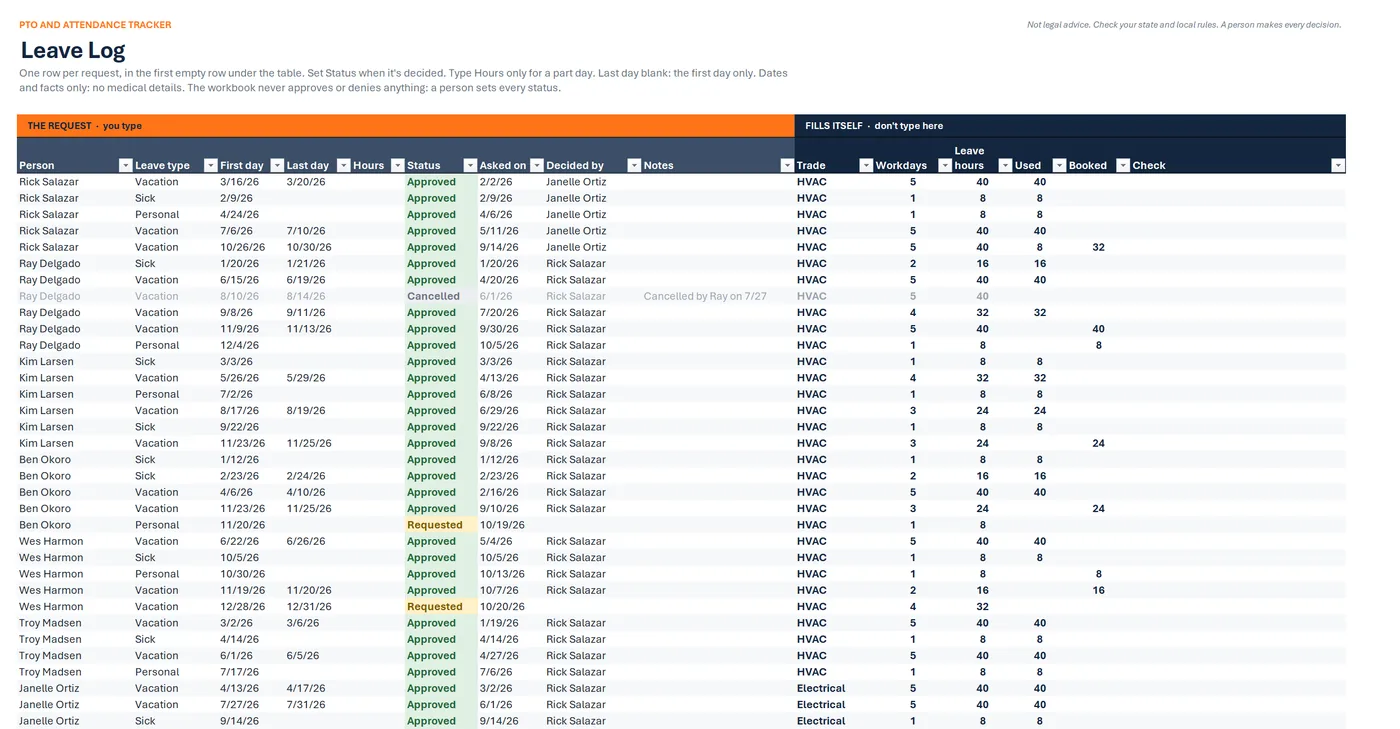
Person Leave type First day Last day Status Ray Delgado Vacation 8/10/26 8/14/26 Cancelled Ben Okoro Vacation 11/23/26 11/25/26 Approved Ben Okoro Personal 11/20/26 Requested Wes Harmon Vacation 12/28/26 12/31/26 Requested Jon Pruitt Vacation 11/23/26 11/25/26 Denied Derek Fong Vacation 11/23/26 11/25/26 Approved Step 5. Log each request on the Leave Log.
Set its status when it's decided.
The Leave Log: one row per request with the person, leave type, dates and status. Workdays, leave hours, used and booked fill themselves. A person sets every status.
Coverage
Sample data
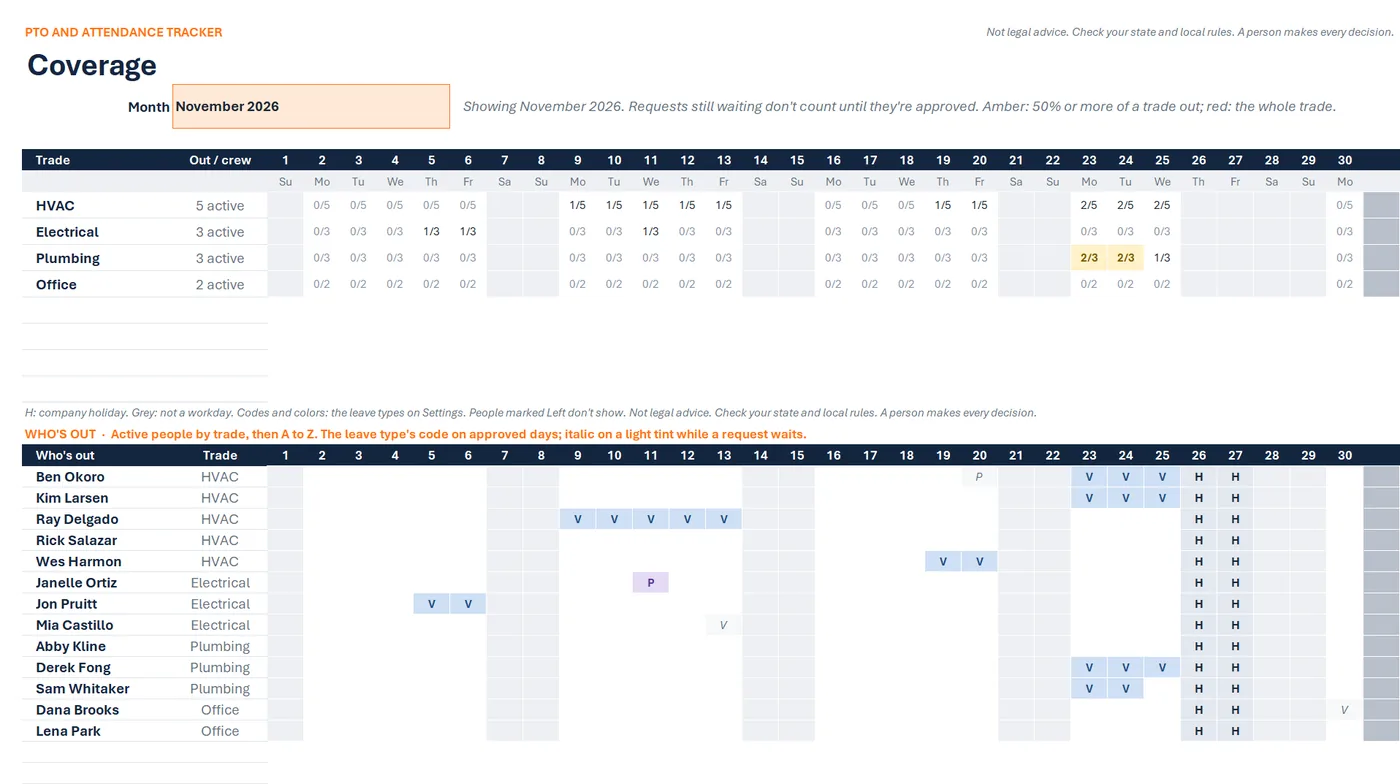
Showing November 2026.
Trade Out / crew Mo 23 Tu 24 We 25 HVAC 5 active 2/5 2/5 2/5 Electrical 3 active 0/3 0/3 0/3 Plumbing 3 active 2/3 2/3 1/3 Office 2 active 0/2 0/2 0/2 Amber: 50% or more of a trade out
Step 6. Each week, open the Dashboard.
Check Coverage before you approve a request.
The Coverage tab for November: for each trade, how many are out each day out of how many, amber when half a trade is out, then each person's days off and company holidays.
Drawn from the sample data in the file. Each step links to the real screen. Made-up data only, in every file and every image.
What's included
- PTO and attendance workbook, blank and ready to set up, with ten tabs: Start Here, Dashboard, Roster, Leave Log, Attendance Log, Adjustments, Balances, Year Calendar, Coverage, and Settings
- A sample-data copy with a made-up crew (14 people, one marked Left) and a made-up leave policy, counted as of Oct 26, 2026, so you can click around before adding your own
- A one-page quick-start PDF
- A start-here text file
Before you buy
- Needs Excel for Microsoft 365 or Excel 2021 or newer, on Windows. Checked in desktop Excel for Microsoft 365 on Windows.
- Not tested yet in Excel for the web or Excel for Mac.
- Not for Google Sheets, Apple Numbers, or Excel 2019 and older.
- No leave policy is included and no leave law is built in. The blank workbook names six common leave types and leaves every amount empty, so you type your own policy.
- No reminders: nothing is emailed or texted. The workbook shows who's out and what's waiting when you open it.
- It doesn't connect to payroll. Time earned per hours worked is typed in from your payroll records.
- Delivered as one .zip file. Unzip it first, then open the Quick Start PDF.
- Digital download. Nothing is shipped.
A person makes every decision
This is a workflow and organizing tool for your crew's time off and attendance records. It holds the policy you type in and does the arithmetic. It doesn't know your state's leave laws, and it never approves, denies or scores anything. Not legal advice. Check your state and local rules. A person makes every decision.
Questions
Does it come with a PTO policy?
No. The blank workbook names six common leave types and leaves every amount, step and cap empty, so nothing reads as a suggested policy. You type your own policy's amounts after checking federal, state and local leave laws. The sample's amounts are made up for the sample.
Does it approve or deny requests?
No. A person sets every status. The workbook shows what's booked, who's out by trade and each balance, and never blocks a request, even one that takes a balance below zero.
Does it send reminders?
No. Nothing is emailed or texted. Open the Dashboard each week: it shows who's out in the next 14 days and the requests still waiting.
Does it keep an attendance score?
No. The Attendance Log records what happened, and nothing scores it or counts it per person. Before any absence counts against anyone, check federal and state leave law.
Does it work on a Mac or in Excel for the web?
Not tested yet. We've checked it in desktop Excel for Microsoft 365 on Windows. It uses no macros and only functions Excel 2021 has, but we haven't opened it in Excel for Mac or Excel for the web.