
Training and Certification Tracker
Employee training tracker in Excel for service companies with a field crew.
It puts each person's licenses, certifications and training in one place and counts what has expired or comes due in the next 90 days.
$12.00
Buy nowPay once. No subscription.
If a file won't open, won't work on your computer or Microsoft plan, or isn't what the page described, we fix it or refund you, your choice. Tell us within 14 days of your purchase.
Questions? Email support@tightshiphq.com
- Made for Excel, not Google Sheets.
- No reminders: nothing is emailed or texted.
How you use it
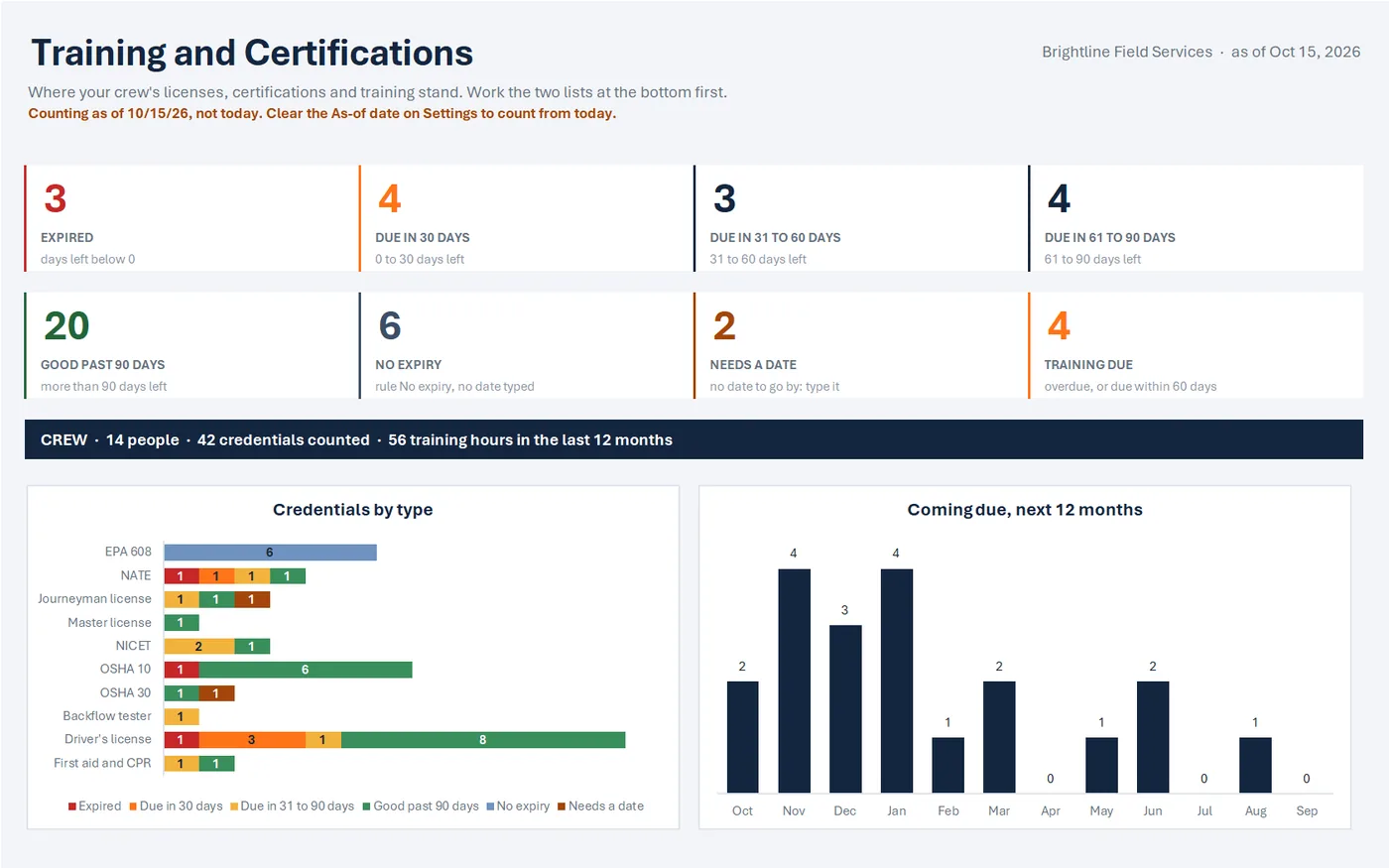
- 3EXPIRED
Sample data
Coming due, next 12 months
Step 1. Open the sample-data copy first.
It shows how it all fits together.
A sample-data copy filled with a made-up crew, so you can click around before adding your own.
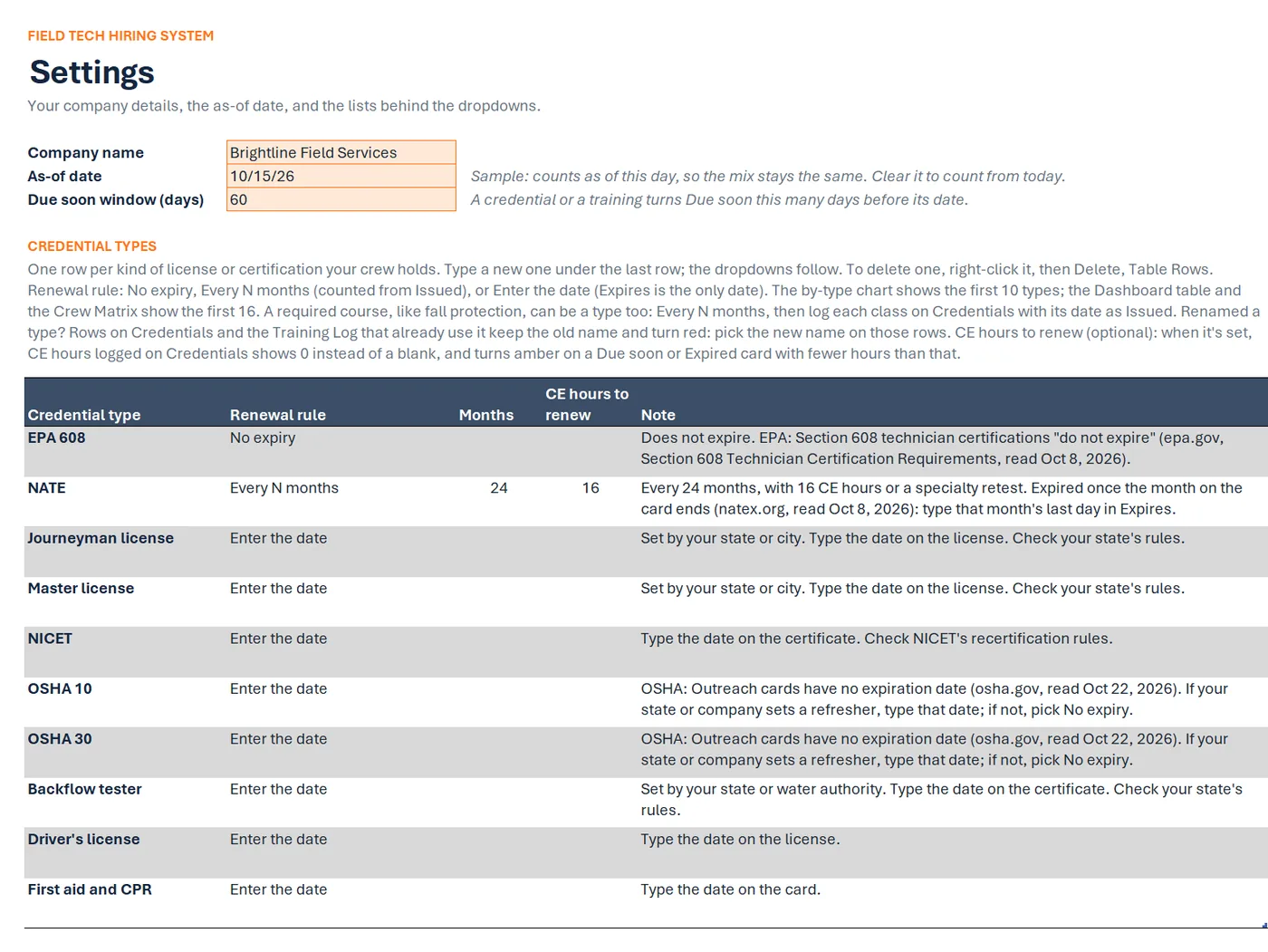
Settings
Sample data
- Company name
- Brightline Field Services
- Due soon window (days)
- 60
CREDENTIAL TYPES
Credential type Renewal rule Months CE hours to renew EPA 608 No expiry NATE Every N months 24 16 Journeyman license Enter the date Master license Enter the date NICET Enter the date OSHA 10 Enter the date Step 2. Save the blank tracker where you keep your work files.
On its Settings tab, type your company name and check the credential types and their rules.
The Settings tab: company name, as-of date, a 60-day Due soon window, and 10 credential types with renewal rules.
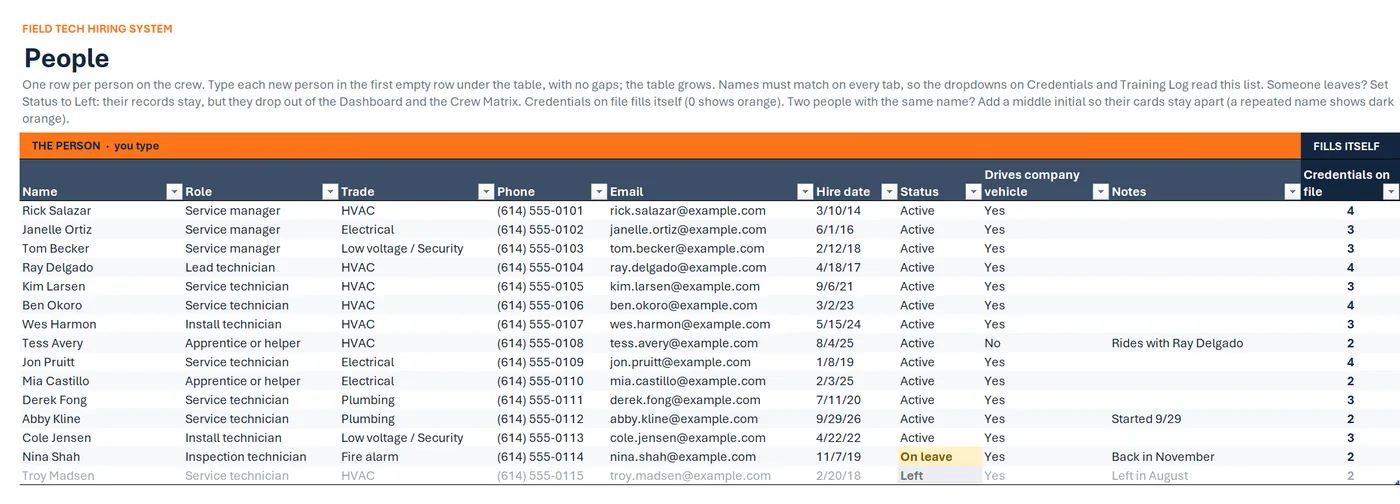
People
Sample data
Name Role Trade Drives company vehicle Ray Delgado Lead technician HVAC Yes Kim Larsen Service technician HVAC Yes Ben Okoro Service technician HVAC Yes Wes Harmon Install technician HVAC Yes Tess Avery Apprentice or helper HVAC No Jon Pruitt Service technician Electrical Yes Step 3. Add your crew on People.
A People tab with role, trade, phone, email, hire date, status, and whether they drive a company vehicle.
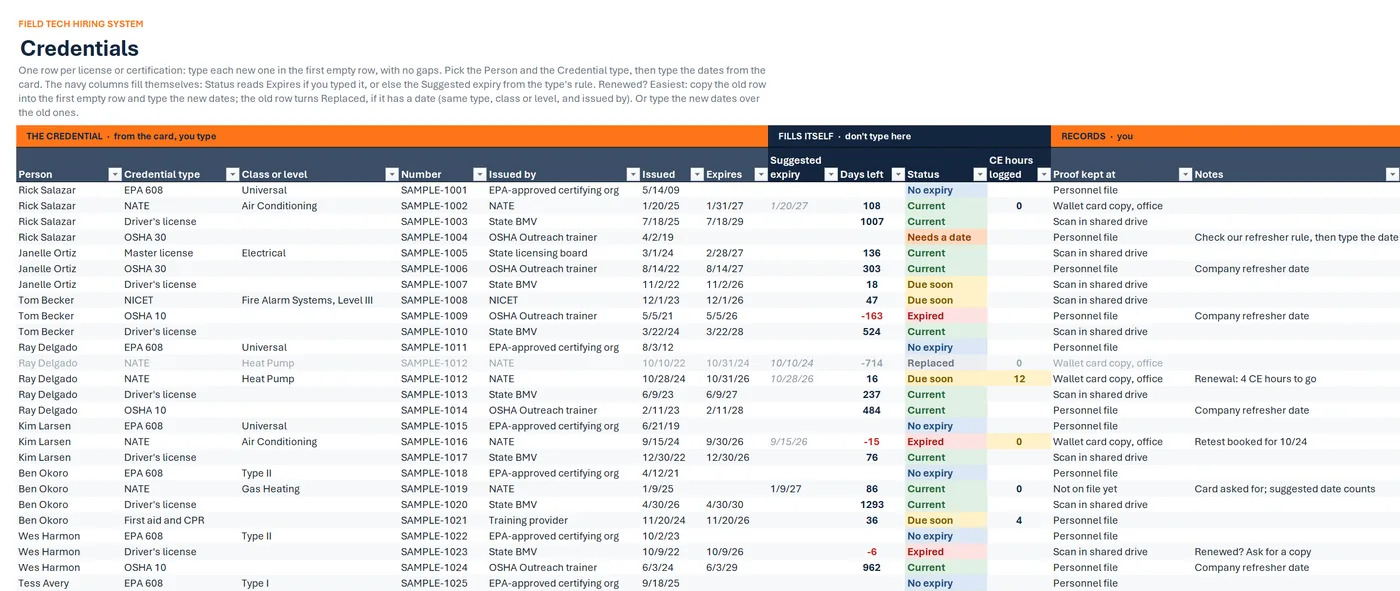
Credentials
Sample data
Person Credential type Expires Days left Status Rick Salazar OSHA 30 Needs a date Janelle Ortiz Master license 2/28/27 136 Current Janelle Ortiz OSHA 30 8/14/27 303 Current Janelle Ortiz Driver's license 11/2/26 18 Due soon Tom Becker NICET 12/1/26 47 Due soon Tom Becker OSHA 10 5/5/26 -163 Expired Step 4. Add each license or certification on Credentials.
Use the dates from the card.
The Credentials tab: one row per license or card. Person, type, issued and expires are typed in; days left, status and CE hours logged fill in by formula.
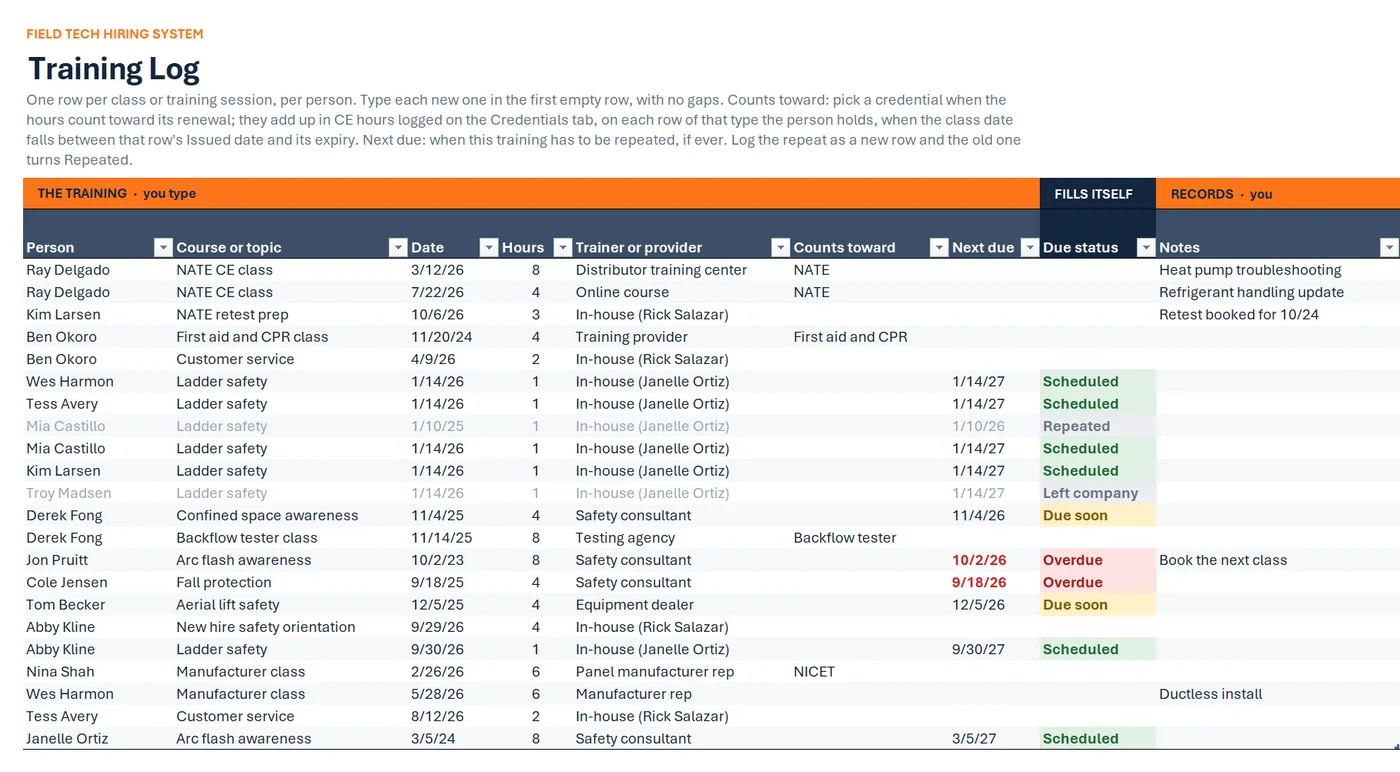
Training Log
Sample data
Person Course or topic Hours Next due Due status Wes Harmon Ladder safety 1 1/14/27 Scheduled Derek Fong Confined space awareness 4 11/4/26 Due soon Jon Pruitt Arc flash awareness 8 10/2/26 Overdue Cole Jensen Fall protection 4 9/18/26 Overdue Tom Becker Aerial lift safety 4 12/5/26 Due soon Abby Kline Ladder safety 1 9/30/27 Scheduled Step 5. Log each class on the Training Log.
A Training Log for every class, with hours, trainer, and next due date.
Training and Certifications
Sample data
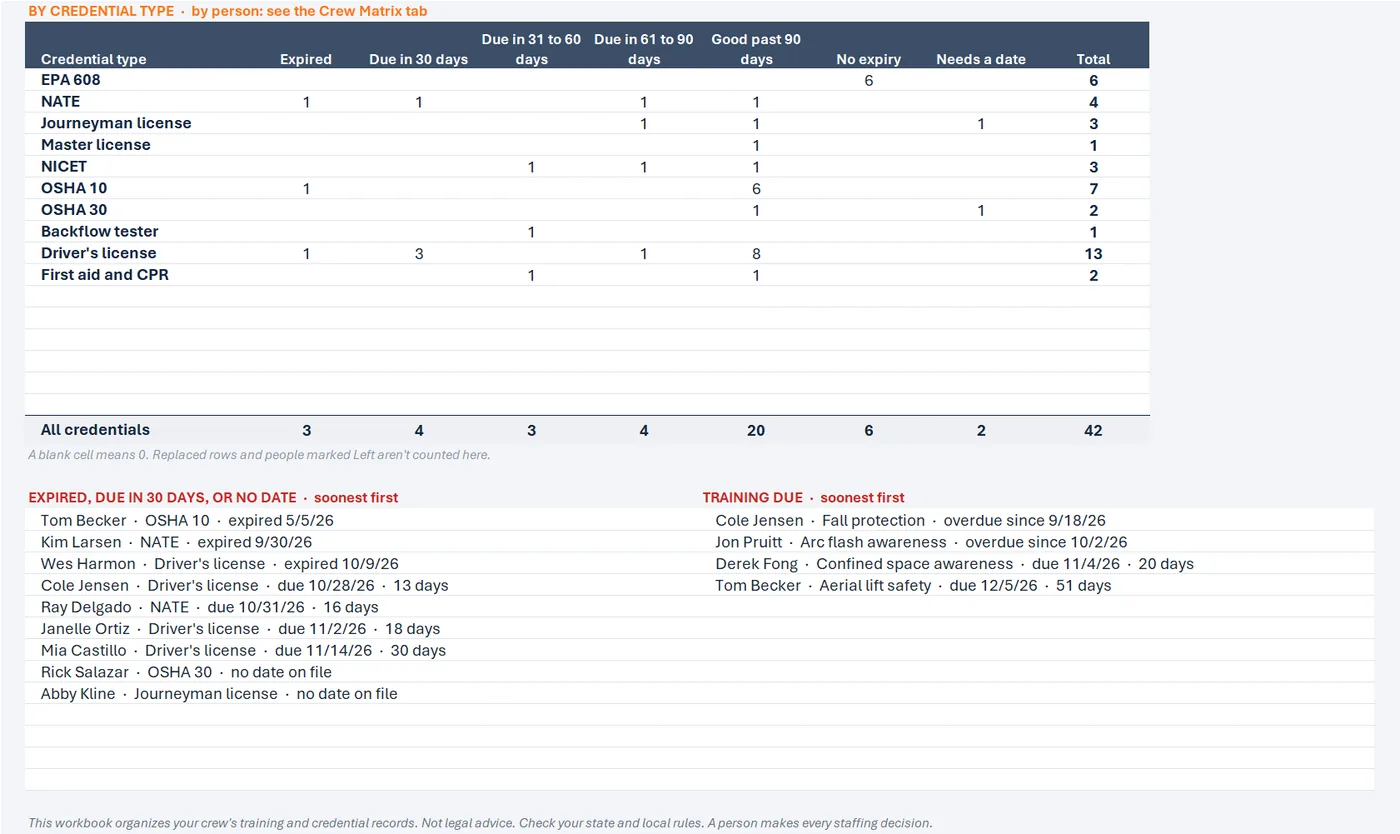
EXPIRED, DUE IN 30 DAYS, OR NO DATE · soonest first
- Tom Becker · OSHA 10 · expired 5/5/26
- Kim Larsen · NATE · expired 9/30/26
- Wes Harmon · Driver's license · expired 10/9/26
- Cole Jensen · Driver's license · due 10/28/26 · 13 days
TRAINING DUE · soonest first
- Cole Jensen · Fall protection · overdue since 9/18/26
- Jon Pruitt · Arc flash awareness · overdue since 10/2/26
- Derek Fong · Confined space awareness · due 11/4/26 · 20 days
Step 6. Each week, open the Dashboard.
Work the two lists at the bottom.
Open the Dashboard each week: its two lists show what has expired, is due in the next 30 days, or is missing a date, and which training is due.
Drawn from the sample data in the file. Each step links to the real screen. Made-up data only, in every file and every image.
What's included
- Training and certification tracker workbook, blank and ready to use, with seven tabs: Start Here, Dashboard, Crew Matrix, People, Credentials, Training Log, and Settings
- A sample-data copy filled with a made-up crew (15 people, one marked Left; 46 credential rows; 22 training rows), so you can click around before adding your own
- A one-page quick-start PDF
- A start-here text file
Before you buy
- Needs Excel for Microsoft 365 or Excel 2021 or newer. Checked in desktop Excel for Microsoft 365 on Windows.
- Not tested yet in Excel for the web or Excel for Mac.
- Not for Google Sheets, Apple Numbers, or Excel 2019 and older.
- No reminders: nothing is emailed or texted. The workbook shows what's due when you open it.
- No state license rules are built in. You type the date from each card or license.
- Delivered as one .zip file. Unzip it first, then open the Quick Start PDF.
- Digital download. Nothing is shipped.
A person makes every decision
This is a workflow and organizing tool for your crew's training and credential records. It doesn't know your state's license rules, and it doesn't decide who is qualified for a job: you check each date against the card and the rules that apply to you. Not legal advice. Check your state and local rules.
Questions
Does it send reminders?
No. Nothing is emailed or texted. Open the Dashboard each week: its two lists show what has expired, is due in the next 30 days, or is missing a date, and which training is due.
Does it know my state's license rules?
No. No state rules are built in. Journeyman, master, backflow tester, and the other license types use the date you type from the license or certificate. Not legal advice. Check your state and local rules.
Can I add my own credential types?
Yes. Type a new one under the last row of the credential types on Settings and pick its renewal rule; the dropdowns follow. To delete one, right-click it, then Delete, Table Rows. The by-type chart on the Dashboard shows the first 10 types, and the Dashboard table and the Crew Matrix show the first 16.
Does this work in Google Sheets?
It's built for Excel, not Google Sheets. It needs Excel for Microsoft 365 or Excel 2021 or newer, and it isn't made for Google Sheets, Apple Numbers, or Excel 2019 and older.
Does it work on a Mac or in Excel for the web?
Not tested yet. We've checked it in desktop Excel for Microsoft 365 on Windows. It uses no macros and only functions Excel 2021 has, but we haven't opened it in Excel for Mac or Excel for the web.
Related tool
Field Tech Hiring System Tracker
The Field Tech Hiring System Tracker has a license column and a first gate check where you mark whether each applicant holds the license or certification the role needs, before you hire.
See this tool$19.00